 Drive DTC
Sync your garage between computers
With Pro, your garage is encrypted on your PC and synced to the cloud so every computer you sign in on has it.
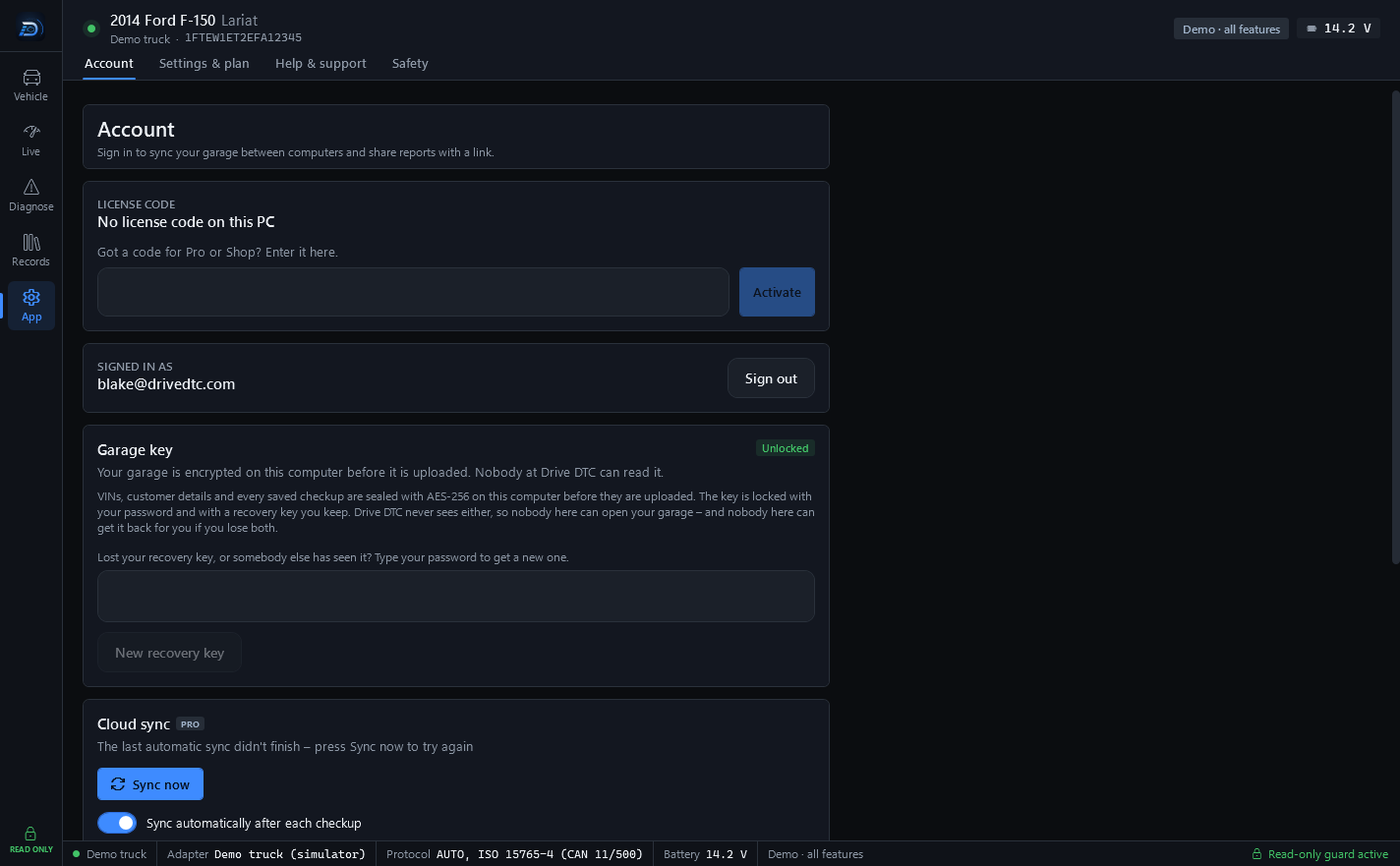
Cloud sync is part of Drive DTC Pro. It keeps the same garage on every computer you sign in on, and it is optional. Without it, your garage lives only on this computer, sealed with Windows data protection.
Turn it on
- Sign in on App → Account. The first time, Drive DTC creates your garage key and shows your recovery key once. Write it down. See Your garage key and recovery key.
- Under Cloud sync press Sync now.
- Turn on Sync automatically after each checkup if you want every checkup uploaded as soon as it is saved.
The Garage toolbar also has a Sync now button. If a sync did not finish, the Garage says so and asks you to press Sync now to try again.
On another computer
- Sign in with the same account.
- Enter your password to unlock the garage key when the Account page asks.
- Press Sync now.
What syncs
Vehicles (VIN, year and nickname), saved checkups, maintenance records, and any customer name, phone number, email or notes you enter in shop mode. All of it is encrypted on your computer before it is uploaded. Nobody at Drive DTC can read it.
Photos and receipts are never uploaded. They stay in the garage folder on the computer where you added them.
Note: The garage on this computer is never overwritten by deleting your cloud data. See Delete your cloud data or your account.
Last updated
Was this helpful?