 Drive DTC
Customers, fleets, follow-ups and yard scan
Keep customer details on each vehicle, group fleet trucks, see who to call after a repair, and scan a lot in a row.
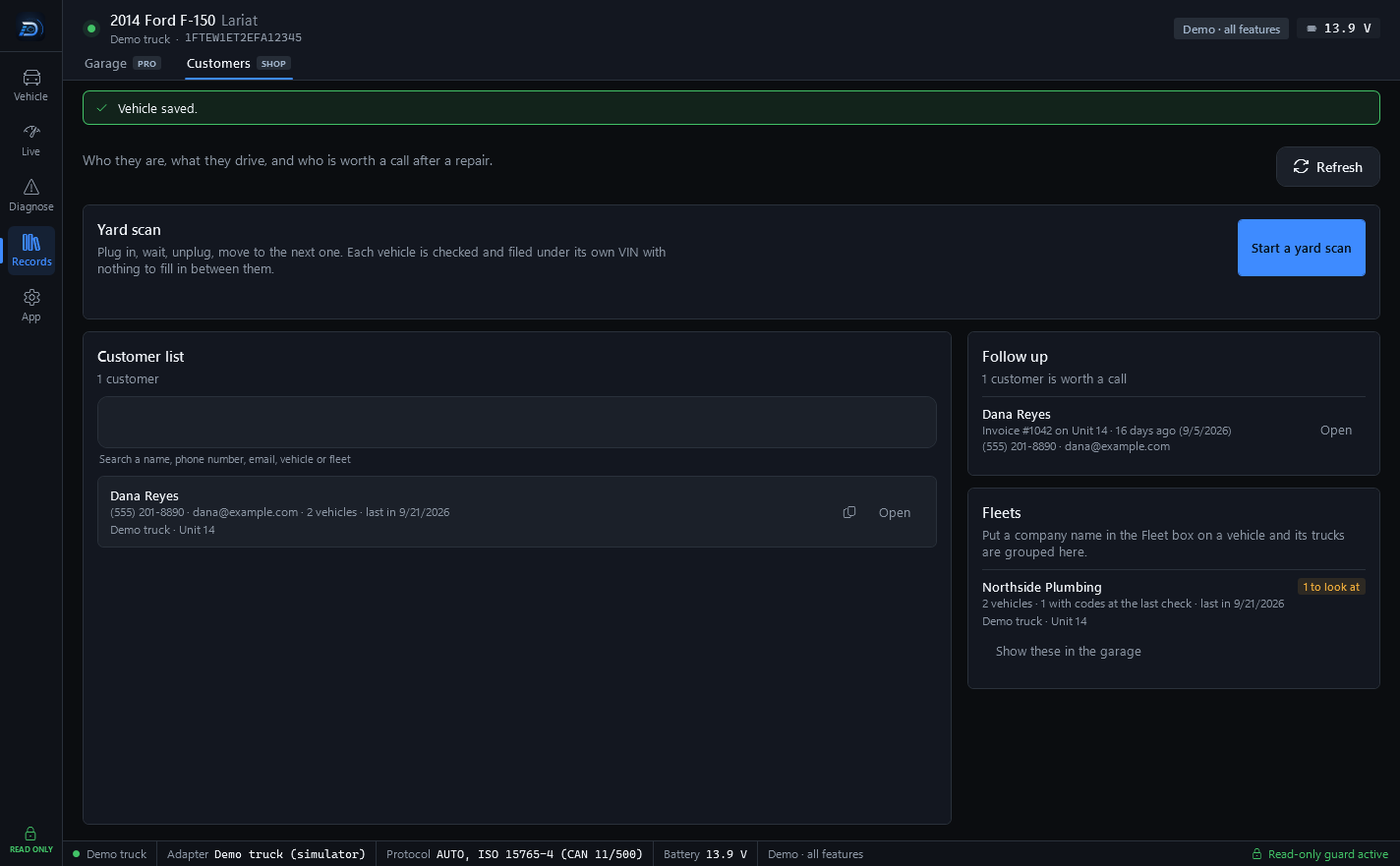
On the Shop plan, each vehicle in the Garage carries its customer, and the Customers tab (Records → Customers) turns those into a customer book. Who they are, what they drive, and who is worth a call after a repair.
Customer details on a vehicle
In the Garage, Vehicle details gains a CUSTOMER section:
- Name, Phone and Email.
- Fleet or company (optional): group vehicles under one company and search by this name.
- Customer authorized this scan. This is required before saving a customer's details – confirm the owner gave permission to scan this vehicle. The date is kept with the vehicle.
Press Save. The customer's name then shows under the vehicle in the list, and the Garage search finds vehicles by customer too.
The Customers page
- Customer list: search a name, phone number, email, vehicle or fleet, then press Open to go to that vehicle in the Garage.
- Follow up: customers worth a call after invoiced work, with what was done and how to reach them.
- Fleets: put a company name in the Fleet box on a vehicle and its trucks are grouped here. Show these in the garage filters the Garage to that fleet.
Press Refresh on the toolbar after making changes in the Garage.
Yard scan
For a lot or a fleet, press Start a yard scan. Plug in, wait, unplug, move to the next one. Each vehicle is checked and filed under its own VIN with nothing to fill in between them. Press Scan this one for each vehicle and Finish when the lot is done.
Note: Customer details stay on your computer, or in your synced garage, encrypted, if you use cloud sync. Section 8 of the Privacy Policy covers shops entering customer information.
Last updated
Was this helpful?