 Drive DTC
Estimates, invoices and customer approval
Build an estimate or invoice on a saved checkup, take a signature, print it, or send a link the customer approves on their phone.
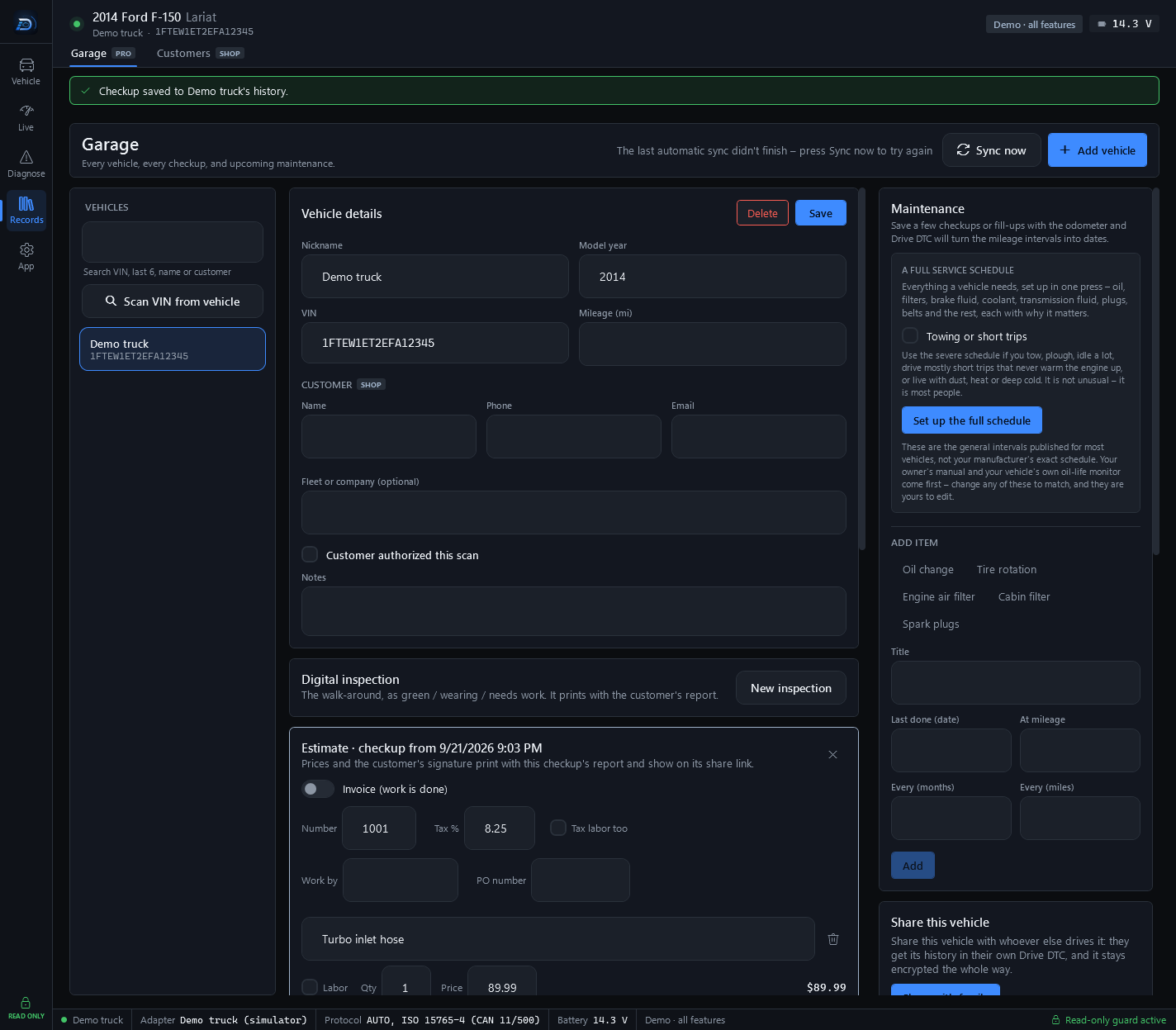
An estimate or invoice is attached to a saved checkup. Prices and the customer's signature print with this checkup's report and show on its share link. Estimates and invoices are part of Drive DTC Shop.
Build one
- In the Garage, select the vehicle and find the checkup under Checkup history.
- Press the estimate icon on that row.
- Leave Invoice (work is done) off for an estimate, or turn it on for an invoice.
- Fill in Number and Tax %, and tick Tax labor too if you charge tax on labor. Add Work by (the technician's name, printed on the report) and a PO number for customer or fleet purchase orders.
- Press + Part or + Labor for each line. Enter the description, Qty and Price. The Labor tick on a line marks it as labor rather than a part.
- Type Notes for the customer.
- Press Save, or Save & print.
The totals update as you type. Under Save these lines as a job, give the lines a name and press Save job to reuse them next time. Saved jobs appear as buttons on future estimates.
Take a signature
The customer can sign in the CUSTOMER SIGNATURE box with a mouse, pen or finger. Type their name under Signed by. By signing, the customer approves the work and prices shown. The signature is saved with this checkup on this computer (and in your synced garage if you use cloud sync). Clear signature starts again.
Send it for approval on their phone
- Press Send for approval. Drive DTC saves the estimate and copies a link. You need to be signed in.
- Text or email the link to the customer.
- They see the estimate, enter their name and an optional note, and press Approve this work or Not yet – I have a question.
- Back in the app, press Check for an answer. The panel shows Approved or Declined with their note. Copy the link again is there if they lost it.
What the customer sees is sealed before it leaves this computer, and the key is in the link itself – the server stores prices and names it can't read. The link stops working after 30 days.
Note: Every estimate carries this line for the customer: This is an estimate based on what's known now. If more work turns out to be needed, the shop will ask before doing it. Your coupon, if you set one, prints under it.
Last updated
Was this helpful?