 Drive DTC
Watch live data and record a drive
Gauges and 35+ values from the engine computer, recorded to CSV and charted on the Replay page.
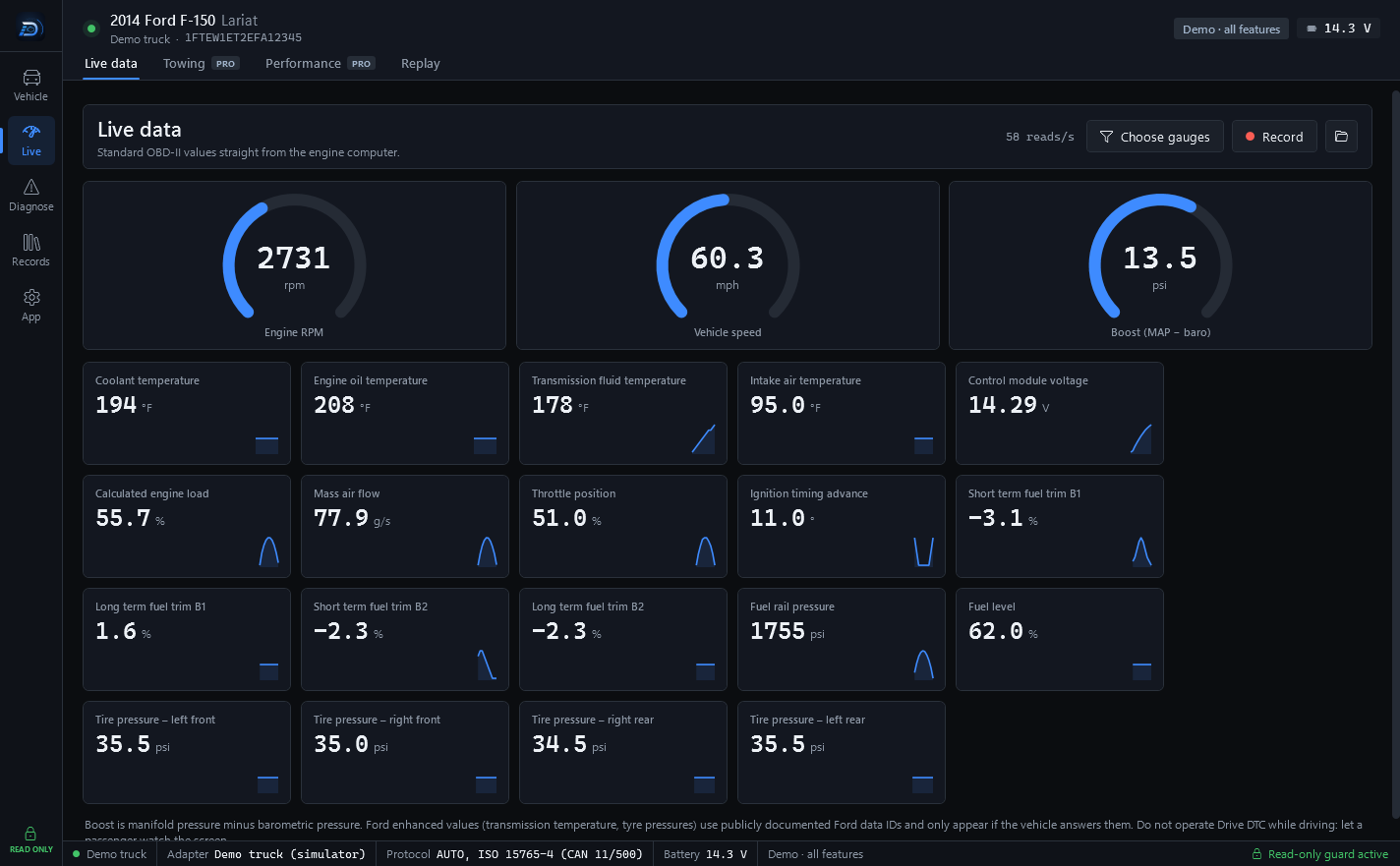
Live data (Live → Live data) shows standard OBD-II values straight from the engine computer: RPM, speed and boost gauges plus a table of 35+ values. It needs a connected vehicle.
Choose what to watch
Press Choose gauges. Pick what to watch. Greyed-out items are not reported by this vehicle. Boost is manifold pressure minus barometric pressure.
Ford enhanced values (transmission temperature, tyre pressures) use publicly documented Ford data IDs and only appear if the vehicle answers them. They are part of the Ford pack and Drive DTC Shop, and always on with the demo truck. See Brand packs.
Record a drive
- Press Record. The button turns into Stop recording.
- Drive, with a passenger watching the screen.
- Press Stop recording. A banner says where the CSV file was saved.
The folder button on the toolbar opens the recordings folder.
Replay a recording
- Go to Live → Replay.
- Press Open recording and pick the CSV file.
- Pick channels on the left. Each line is scaled to its own min–max so different units fit on one chart.
Replay works with nothing plugged in.
Towing and Performance
Two more live screens are part of Drive DTC Pro:
- Towing: big, glanceable numbers for hauling. Borders turn amber or red when a value crosses your alert limits. Change alert limits in Settings & plan → Alerts.
- Performance: 0–60, 30–70 and quarter-mile timers plus live and trip fuel economy. The run timer only turns on after you agree to use it on a closed course where it's legal and safe, with a passenger running the app. Fuel economy and timer results are estimated from engine data. Compare with a fill-up to check accuracy.
Warning: Do not operate Drive DTC while driving. Let a passenger watch the screen. Screens that need reading or tapping lock while the vehicle moves. See The screen locks while the vehicle is moving.
Last updated
Was this helpful?