 Drive DTC
Sign in, sign out and reset your password
Use the Account page to sign in on any PC, get a password reset link, or sign out without losing your garage.
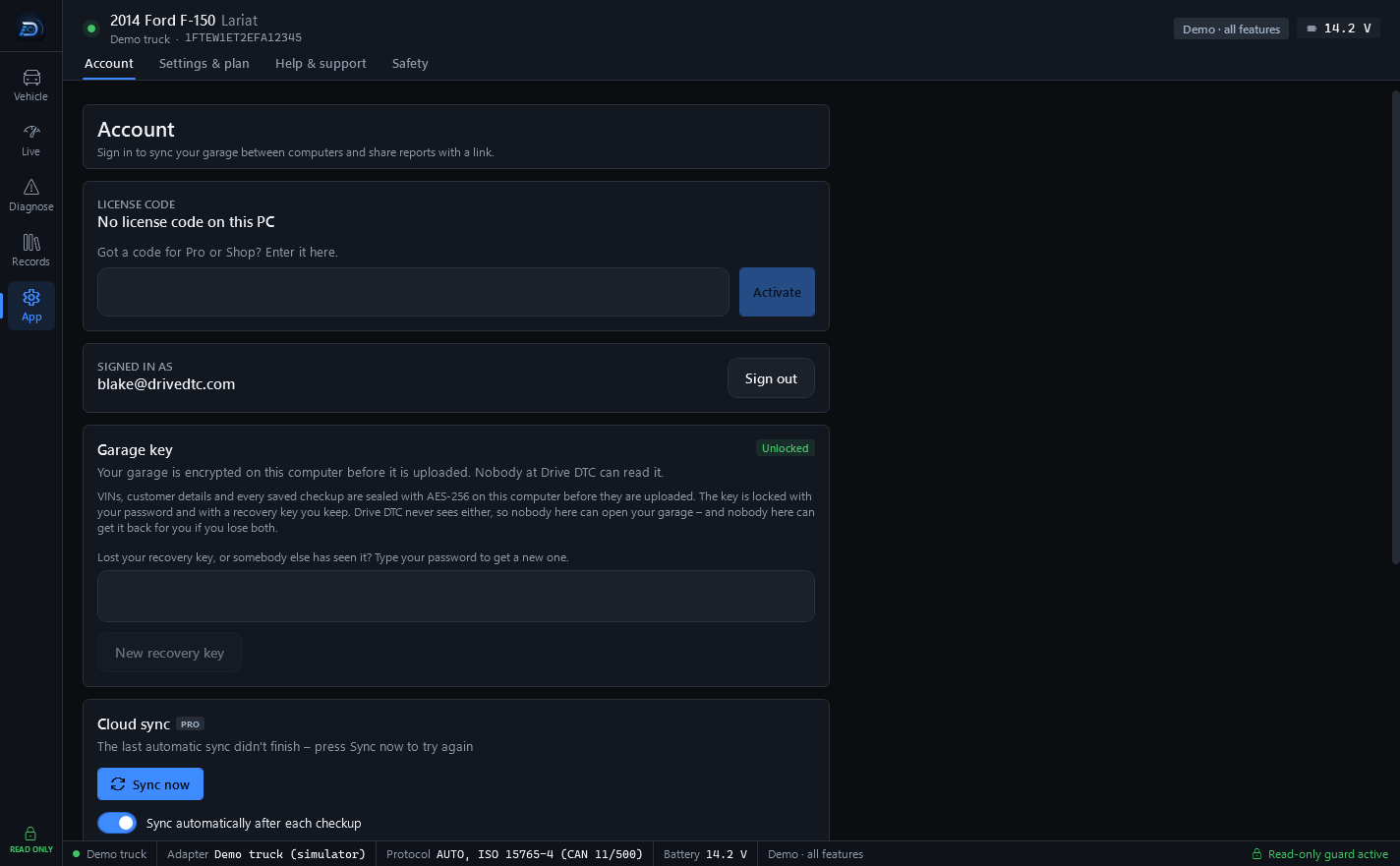
The Account page (App → Account) is where you sign in and out. Signing in is what lets your plan, your garage and your support replies follow you between computers.
Sign in
- Go to App → Account.
- Enter your Email and Password.
- If the agreement box is showing, open the Terms of Service, Privacy Policy and Refund Policy links, then tick it.
- Press Sign in.
When you sign in, Drive DTC uses your password to unlock your garage key on this computer and, with Pro, syncs your garage. The page then shows SIGNED IN AS with your email.
Forgot your password
- Type your email in the Email box.
- Press Forgot password?.
- Drive DTC confirms that, if there is an account for that email, a password reset link is on its way, and that it works on this computer or your phone.
- Open the link, choose a new password, then come back and sign in with it.
Note: Your cloud garage is locked with your password. After a reset, the Garage key card on the Account page may say Locked. Type your recovery key and the password you use now, then press Unlock with recovery key. See Your garage key and recovery key.
Sign out
Press Sign out at the top of the Account page. Drive DTC says: "Signed out. Your garage stays on this computer." Plans and brand packs that came with the account stop applying on this computer until you sign in again.
Last updated
Was this helpful?