 Drive DTC
Drive DTC Shop · For repair shops and dealers
Read the customer's Ford before you write the quote.
Plug in at the bay and run a checkup in about ten seconds: codes, readiness, misfires and battery in plain English, with likely fixes and typical cost ranges at your labor rate. Then hand the customer a report with your shop's name on it, or an estimate they approve from their phone. Read-only by design.
- Everything in Pro
- One-time purchase, no subscription
- Up to 10 computers
The workflow
From the customer to the paperwork
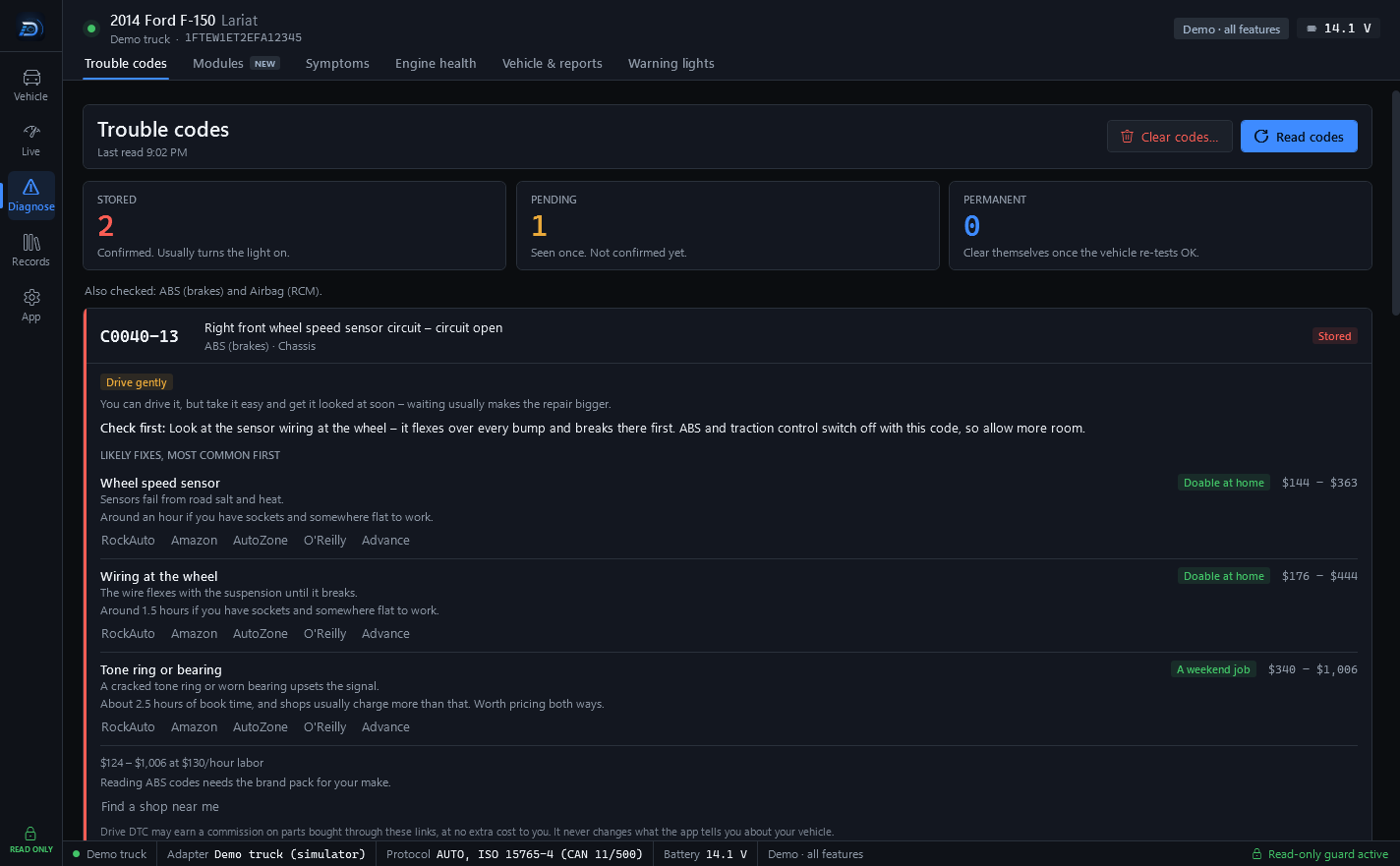
Five screens, in the order a job runs. Every screenshot is the app as it ships, on the built-in demo vehicle.
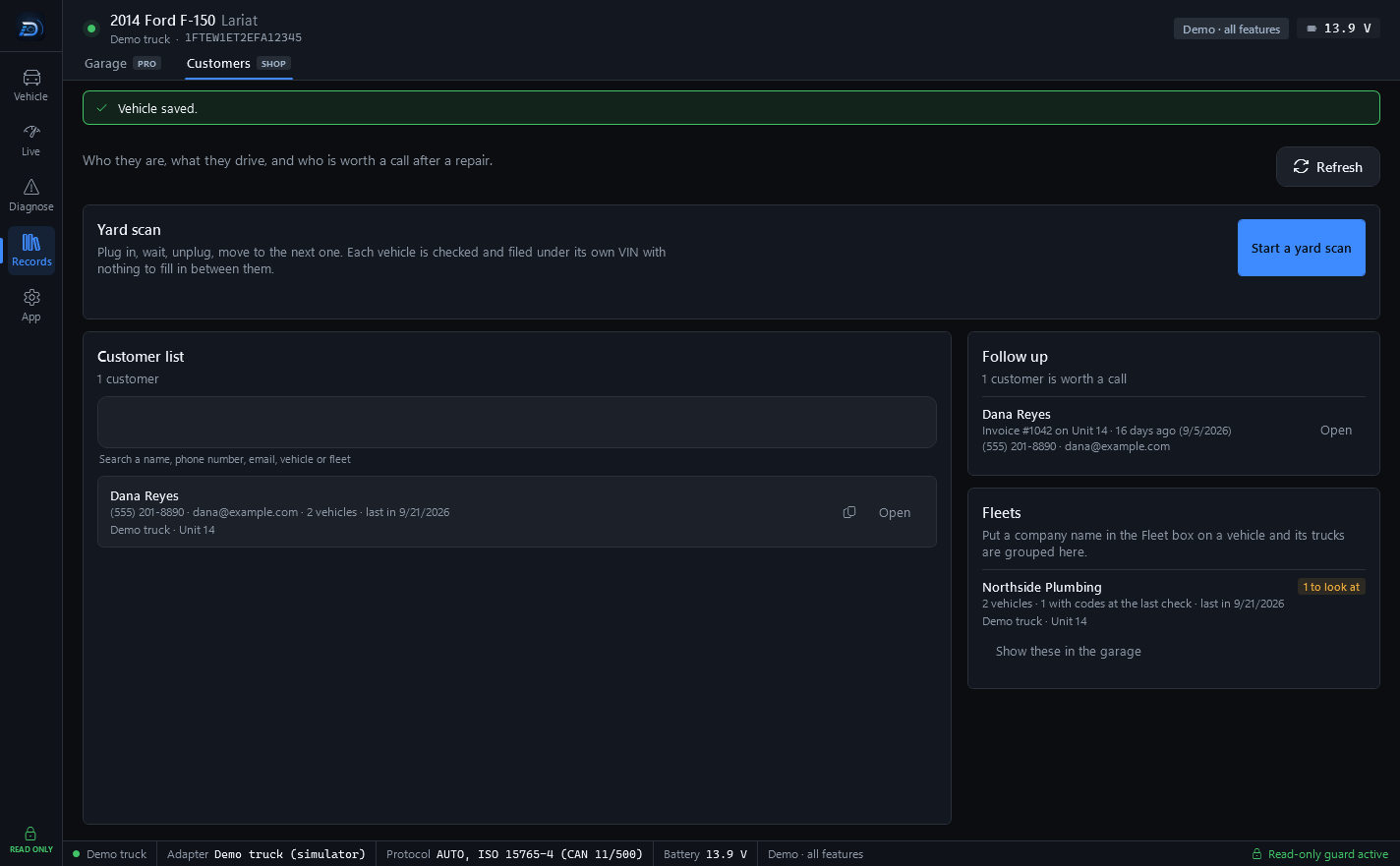
The Customers page is the shop's customer book: search by name, phone, email, vehicle or fleet; fleets grouped by company; who is worth a call after invoiced work; and a yard scan for a lot full of vehicles – plug in, wait, unplug, move to the next one.
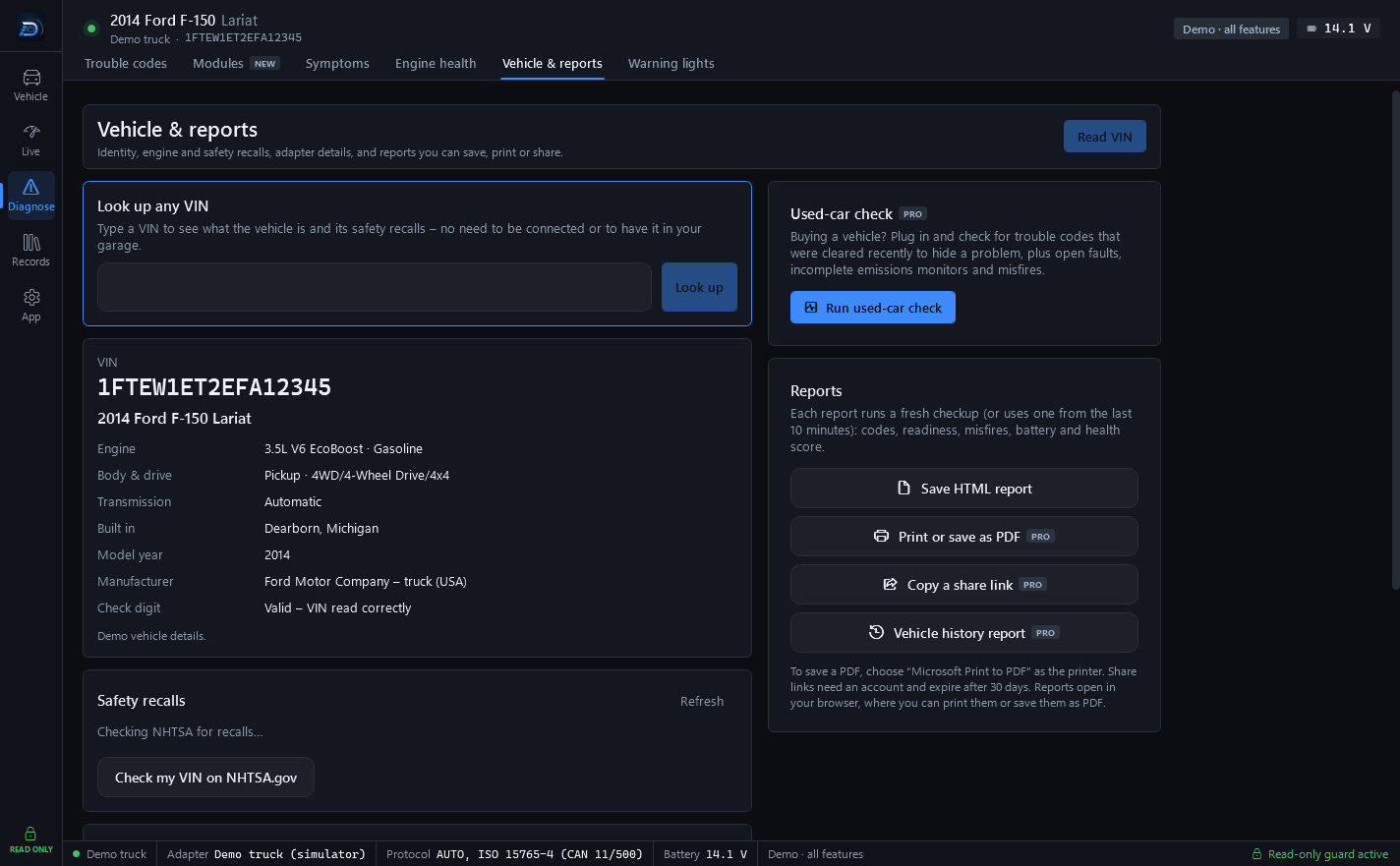
Vehicle & reports reads the VIN and shows the exact model, trim and engine from NHTSA's public database, plus safety recalls for that model. The report buttons live here too.
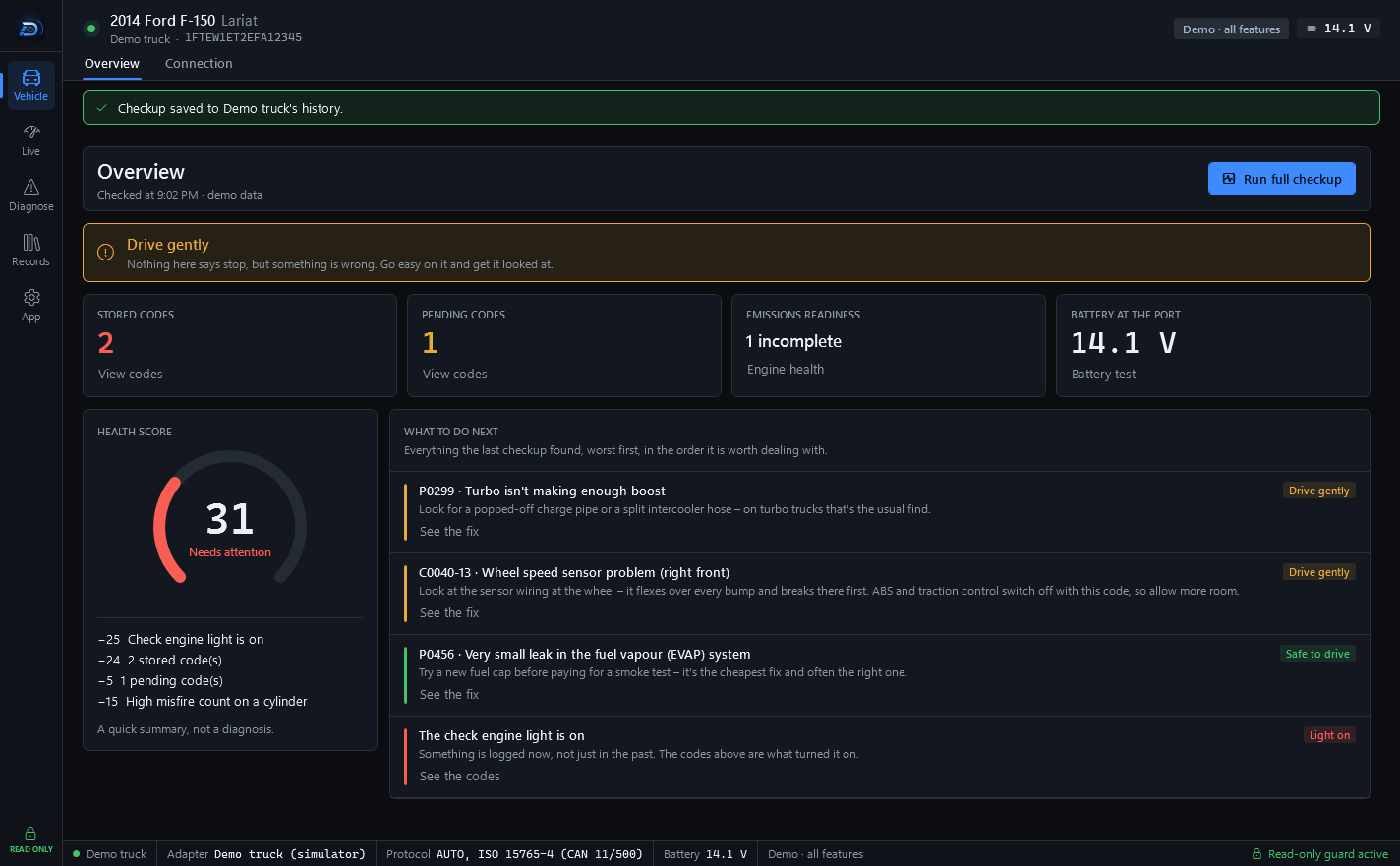
One button reads codes, readiness monitors, misfire counts for every cylinder and battery voltage, summed up in a 0–100 health score and a what-to-do-next list, worst first. A quick summary, not a diagnosis.
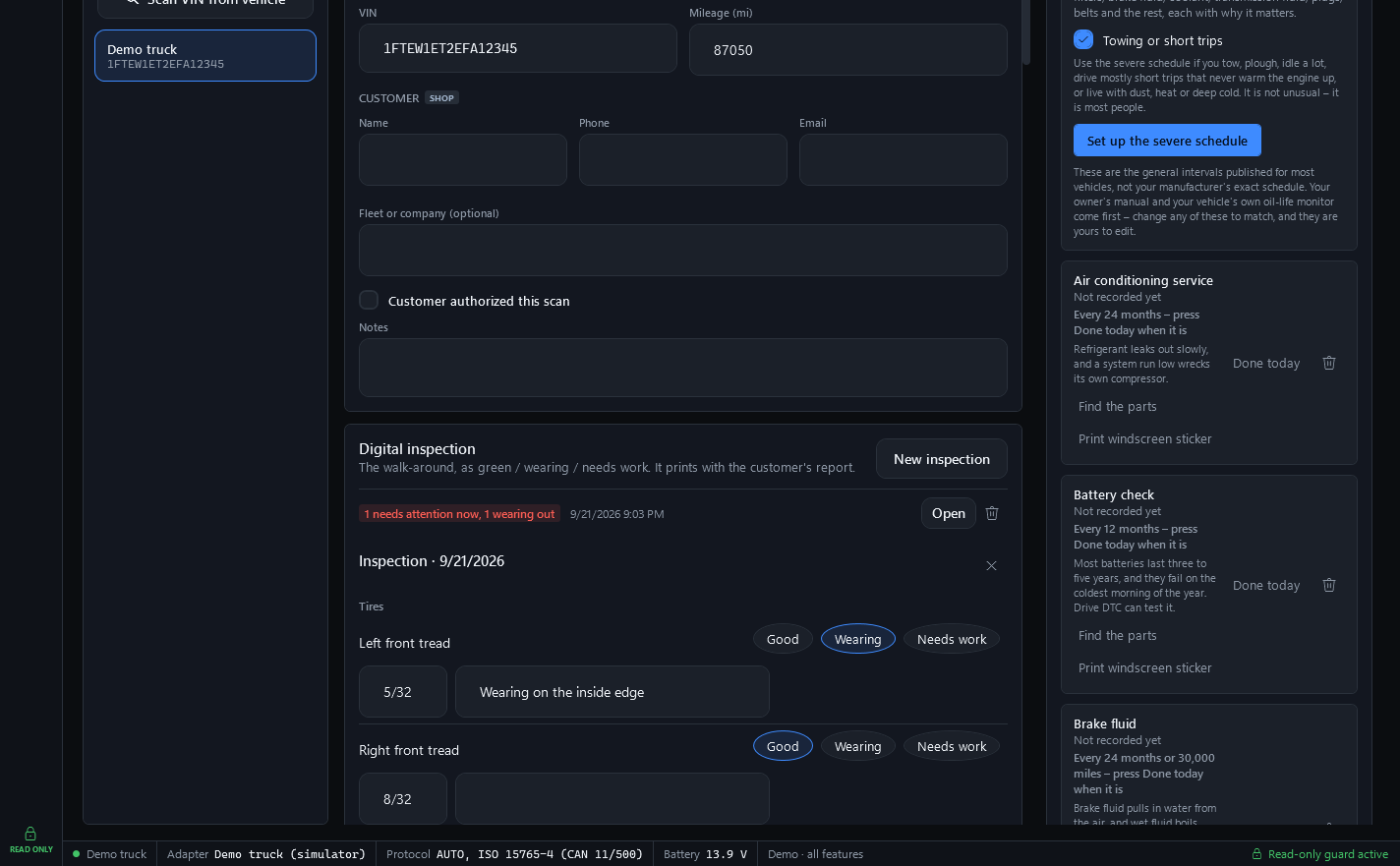
Customer details sit on the vehicle itself. Below them, a digital inspection grades each area Good, Wearing or Needs work with a measurement and a note. It prints with the customer's report.
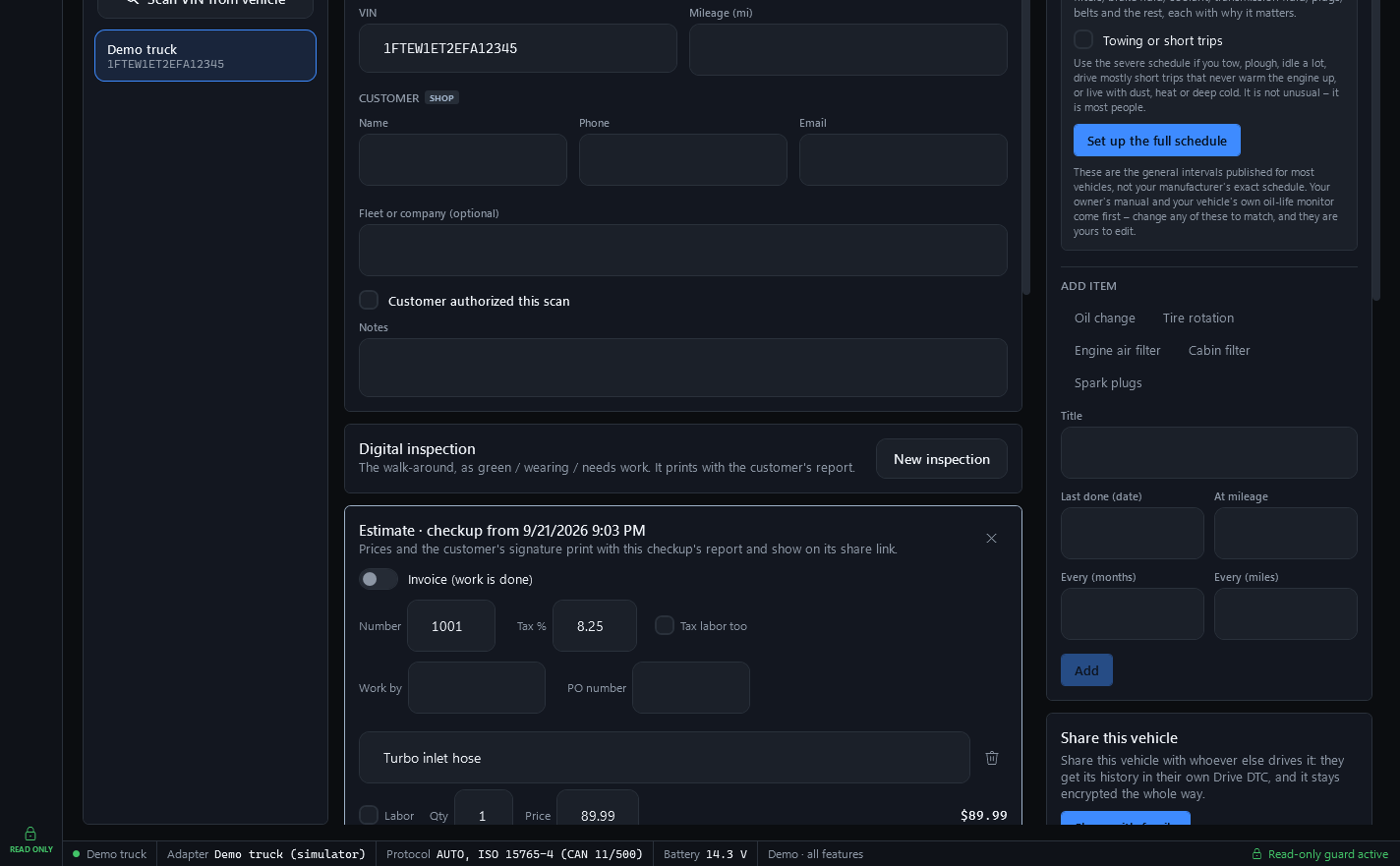
An estimate on the checkup: parts and labor lines, tax and total. Prices and the customer's signature print with this checkup's report and show on its share link. Email the report, or send the estimate for approval on their phone.
What Shop adds
Everything in Pro, plus the customer side of the job
Pro brings garage history, before/after compare, PDF reports, cloud sync and share links. Shop adds what it takes to hand a customer paperwork that carries your name.
Customer details on each vehicle
Name, phone, email, notes and a fleet or company name on every vehicle in the Garage, plus a box to record that the customer authorized the scan.
Reports branded with your shop
Your shop's name, phone, email, address and logo at the top of printed, PDF and shared reports. Set once in Settings & plan under Shop branding.
A customer coupon on reports
An offer, a code and a good-through date, printed as a dashed box at the end of health reports, vehicle history reports and estimates. It disappears once the date has passed.
Email the customer their report
From a saved checkup in the Garage. The customer gets a link that works for 30 days. Each report can be emailed 5 times, and an account can send 40 report emails a day.
Estimates a customer approves on their phone
Send the estimate as a link. They see the work, parts and labor, tax and total, then press “Approve this work” or “Not yet – I have a question”, with a note. The answer comes back to the app with the time they gave it.
A Customers page
A customer book you can search by name, phone, email, vehicle or fleet. Fleets grouped by company. Follow-up calls due after invoiced work. A yard scan mode for checking a lot of vehicles in a row.
Inspections on reports
The walk-around – each area graded Good, Wearing or Needs work, with a measurement and a note – goes on the customer's shared and printed reports, with who checked it.
Every brand pack included
A brand pack adds that brand's extra systems – ABS and airbag codes, transmission temperature and tire pressures. Ford's extras are in the app today; other brands are being built one at a time.
Up to 10 computers
A Shop account can be signed in on up to 10 computers, so the front desk and the bays share one garage. Other accounts get 3.
Engine codes, live data, freeze frame and recalls work on every brand for free. Brand support is being built one brand at a time. Coming-soon brands and features aren't guaranteed – see the Terms.
What the customer gets
Two pages made for a phone
Each one is a link that opens in any browser – no app to install and no account to create. The report is sealed on your computer and the key travels after the # in the link, a part of the address browsers never send to a server.
The shared vehicle report
What a customer sees when they open the link you emailed or copied. It works for 30 days.
- Your shopYour logo and shop name at the top, with address, phone and email, and the date the scan was taken.
- VehicleName, VIN, model year, mileage, customer and the battery voltage at the OBD port.
- Health scoreOut of 100, with the same label the app shows.
- Trouble codesCode, status, module and description – or “No codes”.
- ReadinessEach emissions monitor and its state.
- MisfiresRecent average and current trip, per cylinder.
- NotesWhatever you wrote on the scan.
- InspectionEach area with its measurement, note and grade, and who checked it.
- Work orderEstimate or invoice lines, subtotal, tax and total – with the customer's signature once they have approved it.
- CouponYour offer, its code and the good-through date, until that date passes.
The report ends with: “Read-only OBD-II data. Code titles are generic SAE definitions; confirm any diagnosis with Ford service information. Not affiliated with Ford Motor Company.”
The estimate to approve
What a customer sees when you send an estimate for approval. Their answer goes straight back to the shop.
- Your shopShop name and contact line at the top, then the estimate's title and the vehicle.
- The workEach line: what it is, whether it is parts or labor, quantity and amount.
- TotalsParts and labor, tax and the total, followed by your notes.
- CouponYour coupon, if you sent one with the estimate.
- The answerThe customer types their name, adds a note if they want, and presses “Approve this work” or “Not yet – I have a question”. The page then shows Approved or Declined with the time, and the shop has been told.
The printed estimate carries this line: “This is an estimate based on what's known now. If more work turns out to be needed, the shop will ask before doing it.” The approval page ends with: “Sent from the Drive DTC app by the shop named above.”
Safety
Read-only at the bay
Drive DTC reads. It cannot change a single setting on your vehicle. That holds for every vehicle that rolls in and whoever is at the keyboard.
- Read-only by design.Every message to your vehicle passes a built-in safety guard. Anything that isn't a read is refused in the code – there's no hidden setting to turn it on.
- Clearing codes is the one exception, and you type for it.The one action that changes anything is clearing trouble codes, and you have to type CLEAR to confirm. Every message is shown in the app's safety log.
- ABS and airbag codes are never cleared.Only engine and transmission codes are cleared. ABS and airbag codes stay: have those faults repaired and cleared by a qualified shop.
- The app asks whose vehicle it is.Drive DTC reads information from the vehicle it's plugged into. Only scan vehicles you own or have the owner's permission to scan. We save this confirmation with the VIN, the date and your account or license code. You're asked once per vehicle.
The plan
One purchase for the shop
Pro, Shop and brand packs are one-time purchases through the Microsoft Store – no subscription. Shop includes everything in Pro and every brand pack.
- Try before you buy: the free version and the demo vehicle show how Drive DTC works with every feature.
- Microsoft Store purchases are refunded by Microsoft, under Microsoft's refund policies. Refund policy
- A free Drive DTC account keeps your plan, your garage and your support replies on every PC you use.
Shop
One-timeFor repair shops and dealers
One-time
Price shown in the Microsoft Store
- Everything in Pro
- Every brand pack included
- Customer details on each vehicle
- Reports branded with your shop
FAQ
Questions shops ask
Can I run it on several computers?
Yes. A Shop account can be signed in on up to 10 computers; other accounts get 3. Sign in with the same Drive DTC account on each one; with sync turned on, the garage is the same on all of them. If a Store purchase doesn't show up on a computer straight away, press Restore purchases in Settings & plan.
Can I put my shop's name and logo on reports?
Yes. In Settings & plan, under Shop branding, enter the shop's name, phone, email and address, add a logo, and set your labor rate per hour. The branding goes at the top of printed, PDF and shared reports. A customer coupon – an offer, a code and a good-through date – goes at the end of reports and estimates until the date passes.
Do customers need an account?
No. A shared report or an estimate is a link that opens in any browser, on a phone or a computer, with nothing to install and no account. The report is sealed on your computer and the key travels after the # in the link, a part of the address browsers never send to a server. Report links work for 30 days.
Does it change anything on the vehicle?
No. Every request passes a safety guard that only allows standard read requests and a few Ford readings like transmission temperature and tire pressures. Programming, module configuration, security unlocks, resets and actuator tests are blocked in the code itself. The only thing that changes anything is clearing trouble codes, which asks you to type CLEAR first.
Which vehicles does it work with?
Every 1996-or-newer Ford, Lincoln and Mercury sold in the U.S. has OBD-II. 2008 and newer models (CAN) get every feature, including ABS and airbag codes with the Ford pack; older models get trouble codes, live data, freeze frame and readiness. Engine codes, live data, freeze frame and recalls work on every brand for free; Shop includes every brand pack; Ford's extras are in the app today and other brands are being built one at a time. It needs a USB ELM327-compatible OBD-II adapter and a Windows 10 or 11 PC.
Hand the customer a report with your name on it.
Free to start. Try every feature on the demo vehicle, then buy Shop once in the Microsoft Store.