 Drive DTC
Connect to your vehicle
Plug in, turn the ignition on, press Find adapter and connect, and confirm the vehicle is yours.
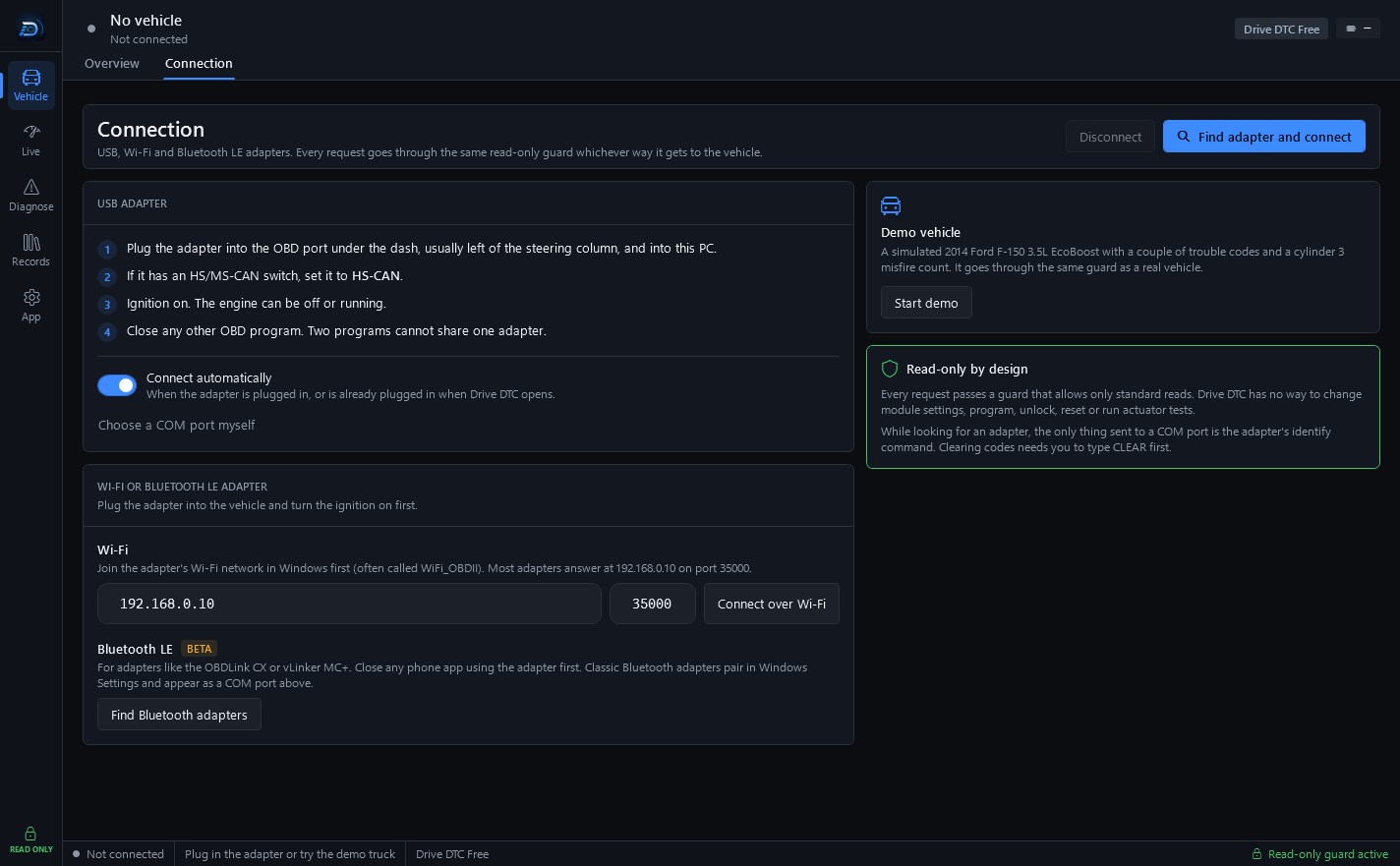
The Connection page (Vehicle → Connection) is where Drive DTC finds your adapter and talks to the vehicle. It handles USB, Wi-Fi and Bluetooth LE adapters, and every request goes through the same read-only guard whichever way it gets to the vehicle.
Connect a USB adapter
- Plug the adapter into the OBD port under the dash, usually left of the steering column, and into this PC.
- If it has an HS/MS-CAN switch, set it to HS-CAN.
- Ignition on. The engine can be off or running.
- Close any other OBD program. Two programs cannot share one adapter.
- Press Find adapter and connect.
With Connect automatically turned on, Drive DTC connects when the adapter is plugged in, or when it is already plugged in when Drive DTC opens.
Choose the port yourself
Press Choose a COM port myself to see the ports Windows knows about. Each row shows the port name and what kind of device it is. Pick one and press Connect to this port. Rescan refreshes the list after you plug something in.
Wi-Fi and Bluetooth LE
Plug the adapter into the vehicle and turn the ignition on first. Then:
- Wi-Fi: check the address and port, then press Connect over Wi-Fi.
- Bluetooth LE (beta): press Find Bluetooth adapters, pick yours from the list, then press Connect.
Is this your vehicle?
The first time a VIN connects, Drive DTC asks you to confirm it: "Drive DTC reads information from the vehicle it's plugged into. Only scan vehicles you own or have the owner's permission to scan." Tick "I own this vehicle or have the owner's permission to scan it." and press Confirm, or press Not mine – disconnect.
"We save this confirmation with the VIN, the date and your account or license code. You're asked once per vehicle."
Once you are connected
The header shows the vehicle and its VIN. The status bar shows the adapter, the protocol and the battery voltage at the OBD port. Go to Vehicle → Overview and run a checkup. Press Disconnect on the Connection page when you are done.
Last updated
Was this helpful?