 Drive DTC
Run your first checkup
One button reads codes, readiness monitors, misfire counts and battery voltage in about ten seconds and scores the vehicle.
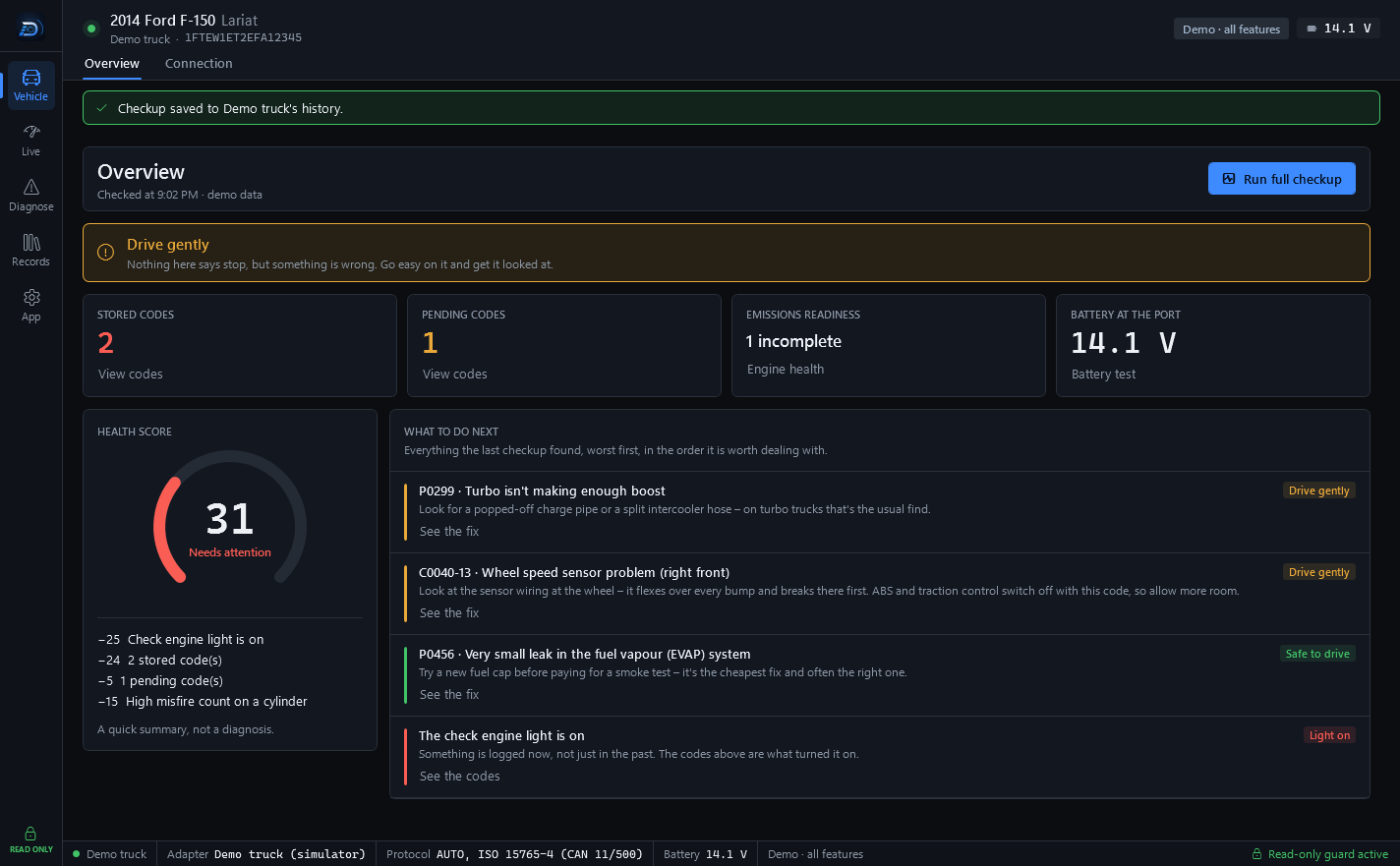
With a vehicle connected, the Overview page (Vehicle → Overview) has one main action: Run full checkup. It reads trouble codes, readiness monitors, misfire counts and battery voltage in about ten seconds, then scores the vehicle.
Run it
- Connect the vehicle with the ignition on. See Connect to your vehicle.
- Go to Vehicle → Overview.
- Press Run full checkup, or press Ctrl+Shift+C from any screen.
- Watch the progress text next to the button. It is done when the numbers appear.
What you get
- A verdict banner across the top: one answer, from everything the checkup found, about whether the vehicle should be driven. When it is urgent there is a Find a shop near me button.
- Four numbers: stored codes, pending codes, emissions readiness and battery at the port, each with a link to the page that explains it.
- A health score from 0 to 100, with the deductions listed under the gauge.
- What to do next: everything the last checkup found, worst first, in the order it is worth dealing with.
Note: A quick summary, not a diagnosis. The checkup tells you what the vehicle reports. It does not prove a part has failed, and it is not a substitute for inspection by a qualified technician.
Have it explained
Explain this (Pro), on the verdict, writes a plain-English account of what the checkup found: what each code refers to, what you might notice, and what to check first. It is new in the next update of Drive DTC; if you don't see it yet, your copy has not updated.
You need to be signed in, with Pro from a license code or from a plan on your account. Pro bought in the Microsoft Store does not count for this yet, because our server cannot confirm a Store purchase. You can have up to 20 a day. When the AI service turns a request away without answering, it does not count.
It is written by AI from what the vehicle reported, so it can be wrong. The verdict and the codes on the page are the app's own and are what to go by. It explains what the vehicle reported; it is not a diagnosis, and a shop should confirm the cause before you buy parts.
Note: Pressing Explain this sends the trouble codes, the readings, the score and the verdict, and the vehicle's year, make, model and engine to Anthropic to be written up. Your VIN, your account and your location are never sent to Anthropic. See What stays on your computer.
After the checkup
With Drive DTC Pro every checkup is saved to the Garage automatically, so you can compare before and after a repair. See Your garage and checkup history. Settings & plan → Windows has a switch, Tell me when a checkup finishes, that shows a Windows notification with the result.
Last updated
Was this helpful?