 Drive DTC
Create a free account or sign in
How the welcome screen works, why the terms checkbox starts greyed out, and what a free account is for.
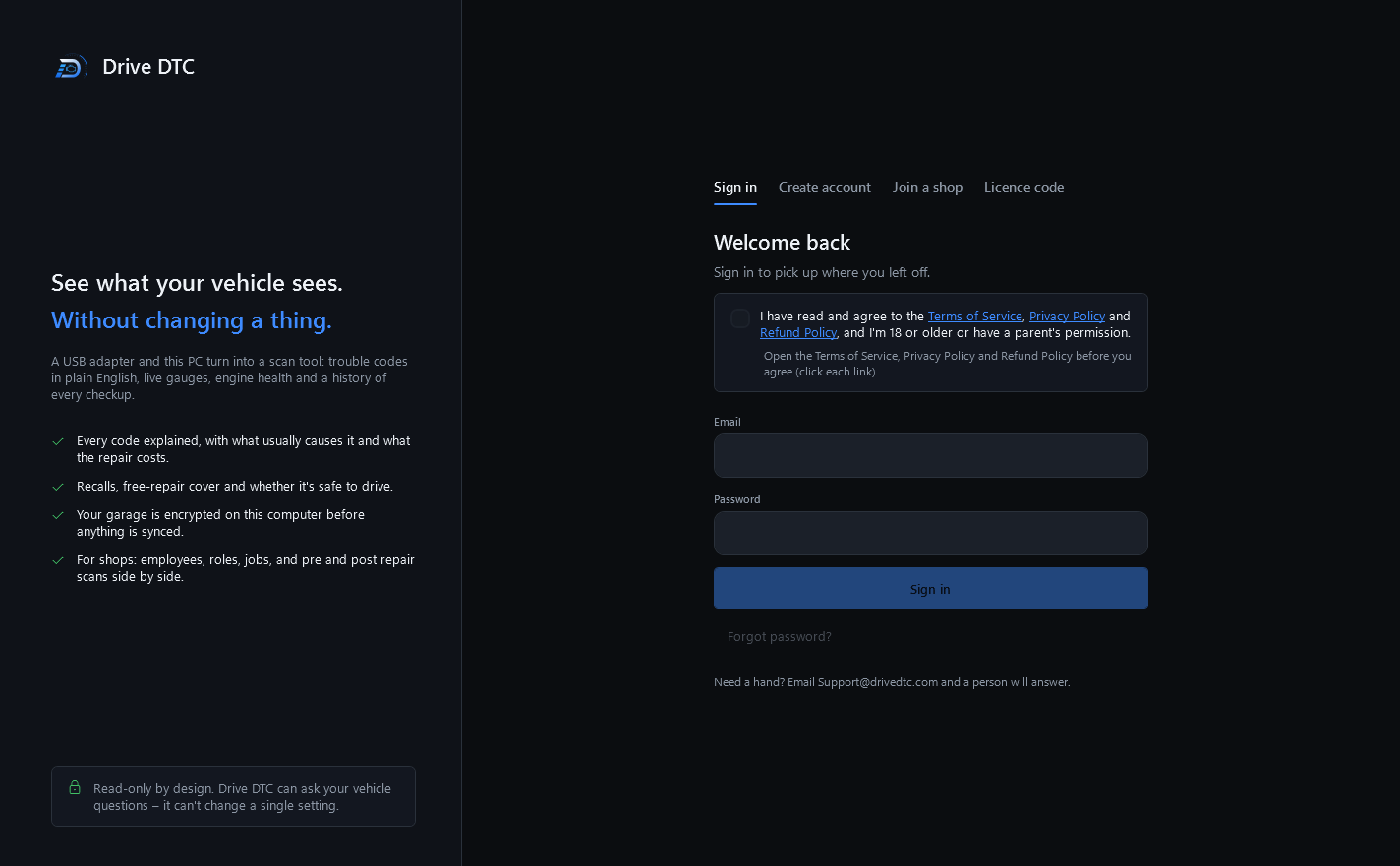
The first time Drive DTC opens it shows a welcome screen. Nothing behind it works until you sign in, create an account or activate a license code.
A free account keeps your plan, your garage and your support replies on every PC you use. There is nothing to pay for a free account, and it never expires.
Create an account
- On the welcome screen choose Create account.
- Choose Personal or Pro. To run Drive DTC in a shop, create a Personal or Pro account and buy Shop from Settings & plan. The Repair shop application and Join a shop are not in service yet - nothing happens after you press Apply.
- Enter your email and a password of at least 6 characters.
- Open the Terms of Service, Privacy Policy and Refund Policy links. The agreement checkbox only turns on after you have opened all three.
- Tick the box and press Create account.
- If Drive DTC says to check your email, open the confirmation link, then come back to the app and sign in.
Sign in
Choose Sign in, enter your email and password, and press Sign in. Forgot password? sends a reset link that works on this computer or your phone. See Sign in, sign out and reset your password.
Use a license code instead
If you have a code like DDTC-XXXX-XXXX-XXXX-XXXX, choose Licence code on the welcome screen. Codes work without an account. A coupon word off a flyer works in the same box. See Activate a license code or coupon.
Note: Need a hand? Email [email protected] and a person will answer.
Last updated
Was this helpful?