 Drive DTC
Find your way around the app
The five groups on the left rail, the tabs inside each, keyboard shortcuts, and what the status bar tells you.
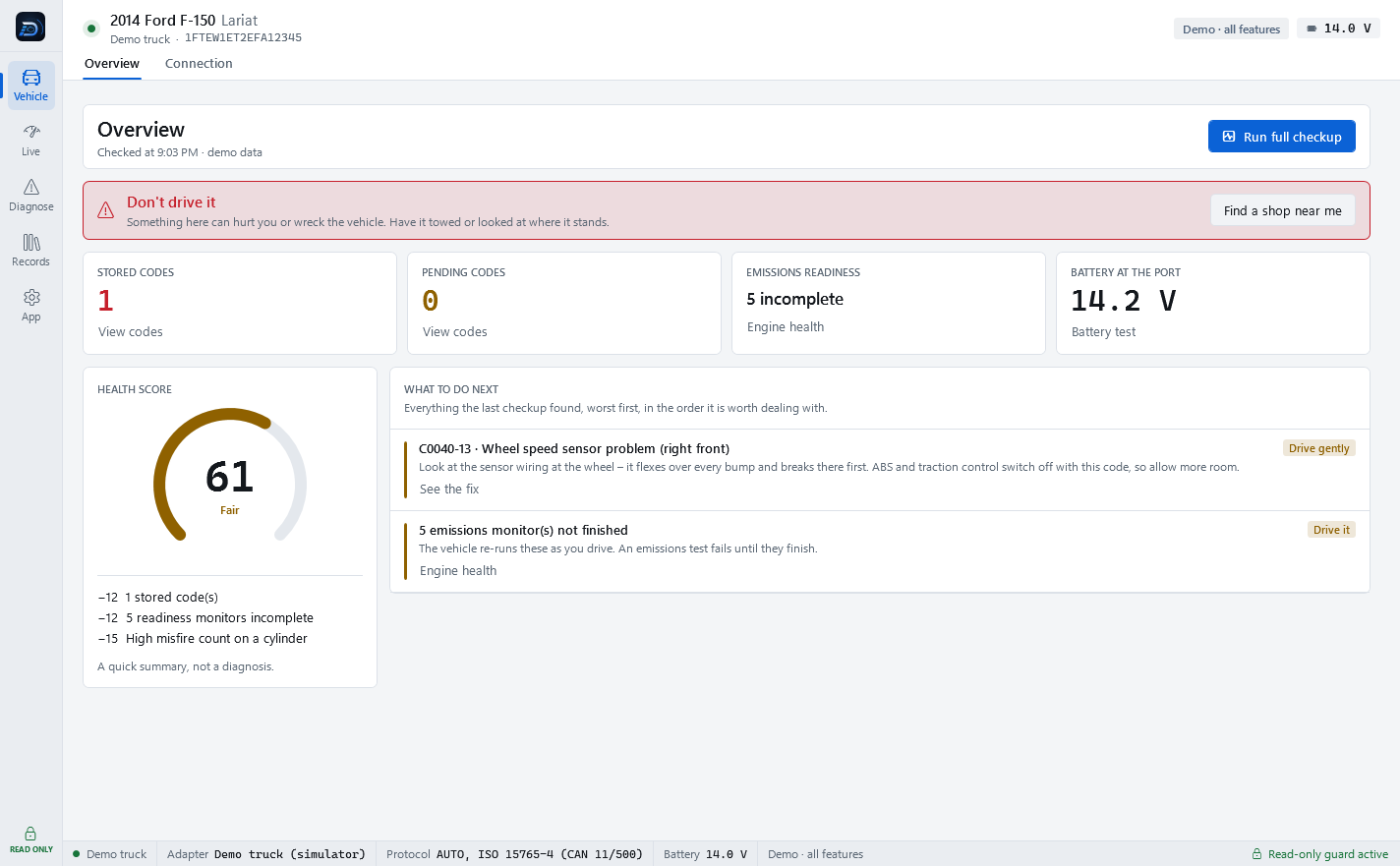
Drive DTC is organised as a rail of groups down the left, with tabs across the top of each group.
The rail
- Vehicle: Overview and Connection.
- Live: Live data, Towing (Pro), Performance (Pro) and Replay.
- Diagnose: Trouble codes, Modules, Symptoms, Engine health, Vehicle & reports and Warning lights.
- Records: Garage (Pro), and Customers when your plan is Shop.
- App: Account, Settings & plan, Help & support and Safety.
Tabs that need a connected vehicle are greyed out until one is connected: Live data, Towing, Performance, Trouble codes, Engine health and Vehicle & reports. Symptoms, Warning lights, Replay and the Garage work with nothing plugged in.
Header and status bar
The header shows the vehicle, its VIN, whether you are connected, your plan badge and the battery voltage at the OBD port. The status bar along the bottom shows the connection, the adapter, the protocol, the battery and the plan, and ends with Read-only guard active. The lock at the bottom of the rail says READ ONLY: Drive DTC cannot change anything on your vehicle. Every request is checked before it is sent.
Keyboard shortcuts
Ctrl+1 Home · Ctrl+2 Live data · Ctrl+3 Towing · Ctrl+4 Performance · Ctrl+5 Codes · Ctrl+6 Health · Ctrl+7 Vehicle · Ctrl+8 Garage · Ctrl+9 Replay · Ctrl+0 Settings · Ctrl+Shift+C Run checkup
Make it easier to read
Settings & plan → Appearance has three switches:
- Theme: Dark or Light.
- Garage mode – bigger text and buttons.
- US units (°F, mph, psi, mpg). Off, the app uses metric.
Last updated
Was this helpful?