 Drive DTC
Your garage and checkup history
Every vehicle and every saved checkup in one place, with a before-and-after comparison after a repair.
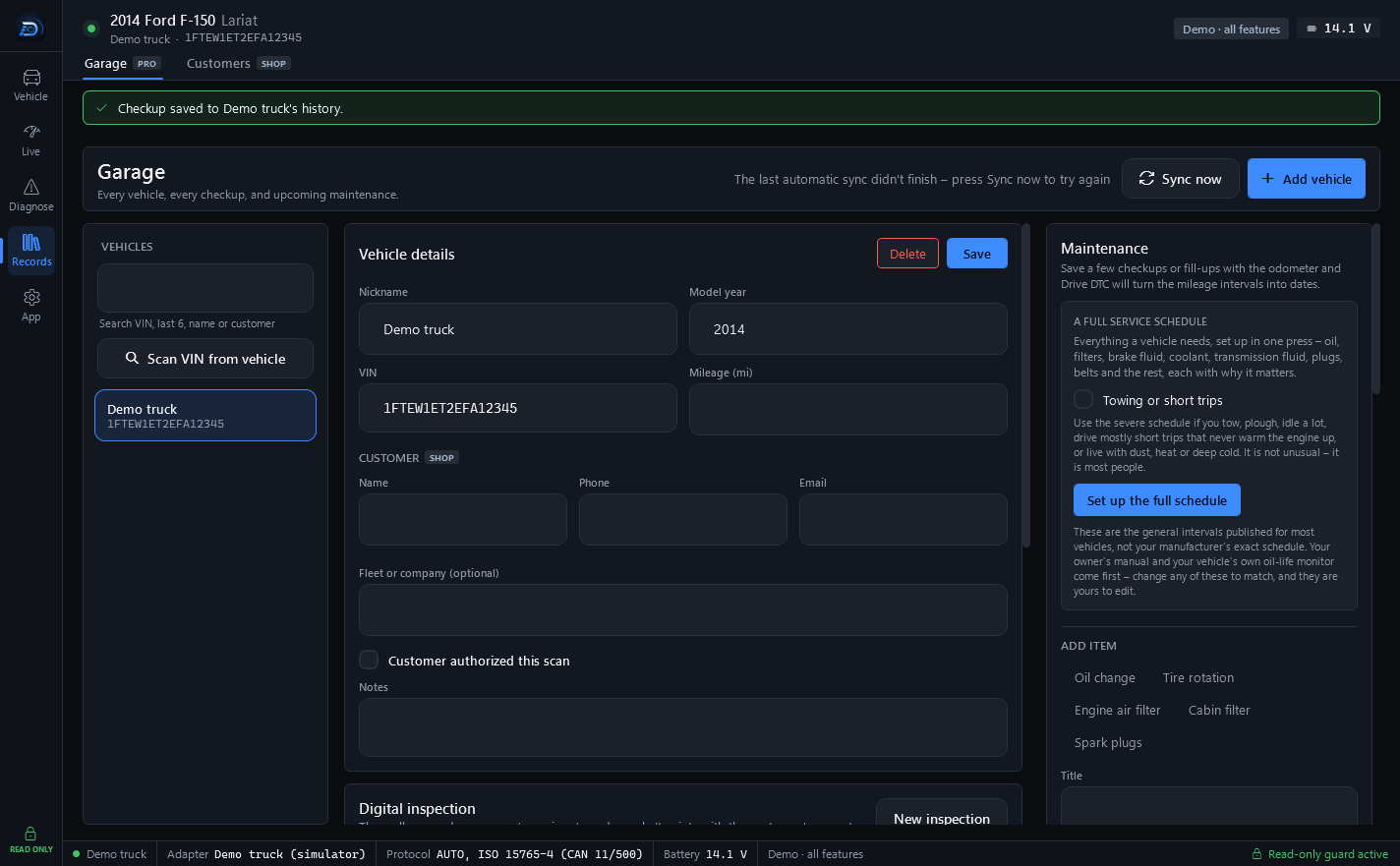
The Garage (Records → Garage) is part of Drive DTC Pro. It keeps every vehicle, every checkup, and upcoming maintenance. Once it is on, every full checkup you run from Overview is saved here automatically.
Vehicles
- Add vehicle creates one by hand. Give it a Nickname, VIN, Model year and Mileage, then press Save.
- Search finds a vehicle by VIN (all of it or the last 6), name or customer.
- Scan VIN from vehicle reads the VIN from the connected vehicle and finds its history. If it is new, press Add this VIN to the garage.
- Delete removes the vehicle and everything saved under it.
The first time you connect a vehicle and run a checkup, it is added to the Garage for you.
Checkup history
Each saved checkup shows its date, score and a one-line summary, with icons to Print or save as PDF, Copy a share link and Delete. Shop plans add an estimate icon and an email icon.
Compare before and after
- Tick two checkups, for example one before a repair and one after.
- Press Compare selected.
- The Before → after panel lists each difference between the two, with a chip saying what kind of change it is.
Press the close icon on the panel when you are done. The Garage also warns when the same code returned within 90 days of an invoice, under Came back after a repair.
Photos and receipts
Keep the picture of the worn part and the invoice from the shop with the vehicle. Press Add photo or Add receipt. Files are copied into your garage folder, locked to your Windows account, and never uploaded.
Note: On Free the Garage tab shows a lock screen with See plans and Try it with the demo truck. The demo unlocks it for a look. Connected to the demo truck, the garage shows a Demo truck vehicle you can experiment with.
Last updated
Was this helpful?