 Drive DTC
Updates and maintenance notices
What the Time to update, Down for maintenance and What's new screens mean, and what keeps working.
Drive DTC updates through the Microsoft Store like any other Store app. A few screens and banners tell you when something on Drive DTC's side has changed.
Time to update Drive DTC
When your copy is older than the minimum version the cloud supports, the app shows a Time to update Drive DTC panel with the version to get. Updates arrive on their own from the Microsoft Store. If this keeps appearing, open the Store and check for updates by hand.
- Get the update opens the Store.
- See what is new opens the release notes.
- Carry on without the cloud lets you keep reading a vehicle with this copy. Reading a vehicle is local and read-only, so it is never blocked by an update.
What's new
After an update, a banner says "Drive DTC updated to …. See what's new." Press it, or go to Settings & plan → What's new, to read the release notes for your version. The same list is on the What's new page, and See them all online opens it.
Down for maintenance
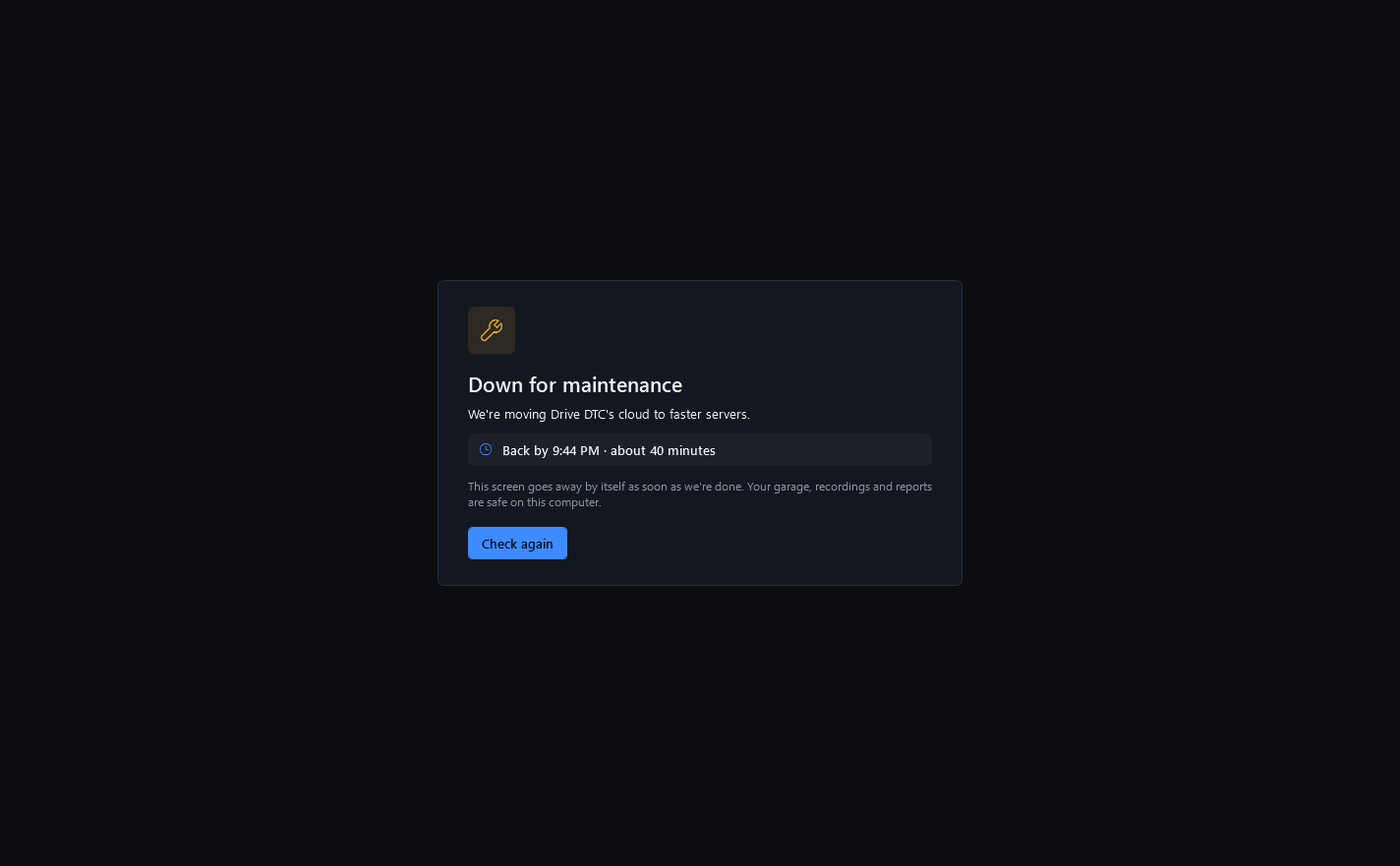
When Drive DTC's cloud is being worked on, the app shows a banner, or a Down for maintenance panel with the reason and, when known, the time it should be back by. This screen goes away by itself as soon as we're done. Your garage, recordings and reports are safe on this computer. Press Check again to ask straight away. A banner also appears ahead of planned maintenance, and the status page shows the same information in your browser.
Cloud features such as sign-in, sync, share links and license checks wait until the cloud is back.
Announcements
Occasionally a short announcement appears as a banner across the top of the app. Press the close icon to dismiss it.
Note: If the app asks you to review the Terms again, it is because they changed. The agreement box turns on after you have opened all three policies, the same as on the welcome screen.
Last updated
Was this helpful?