 Drive DTC
Contact support and send diagnostics
Open a ticket in the app or on this website, or email us. Replies arrive in the thread and by email.
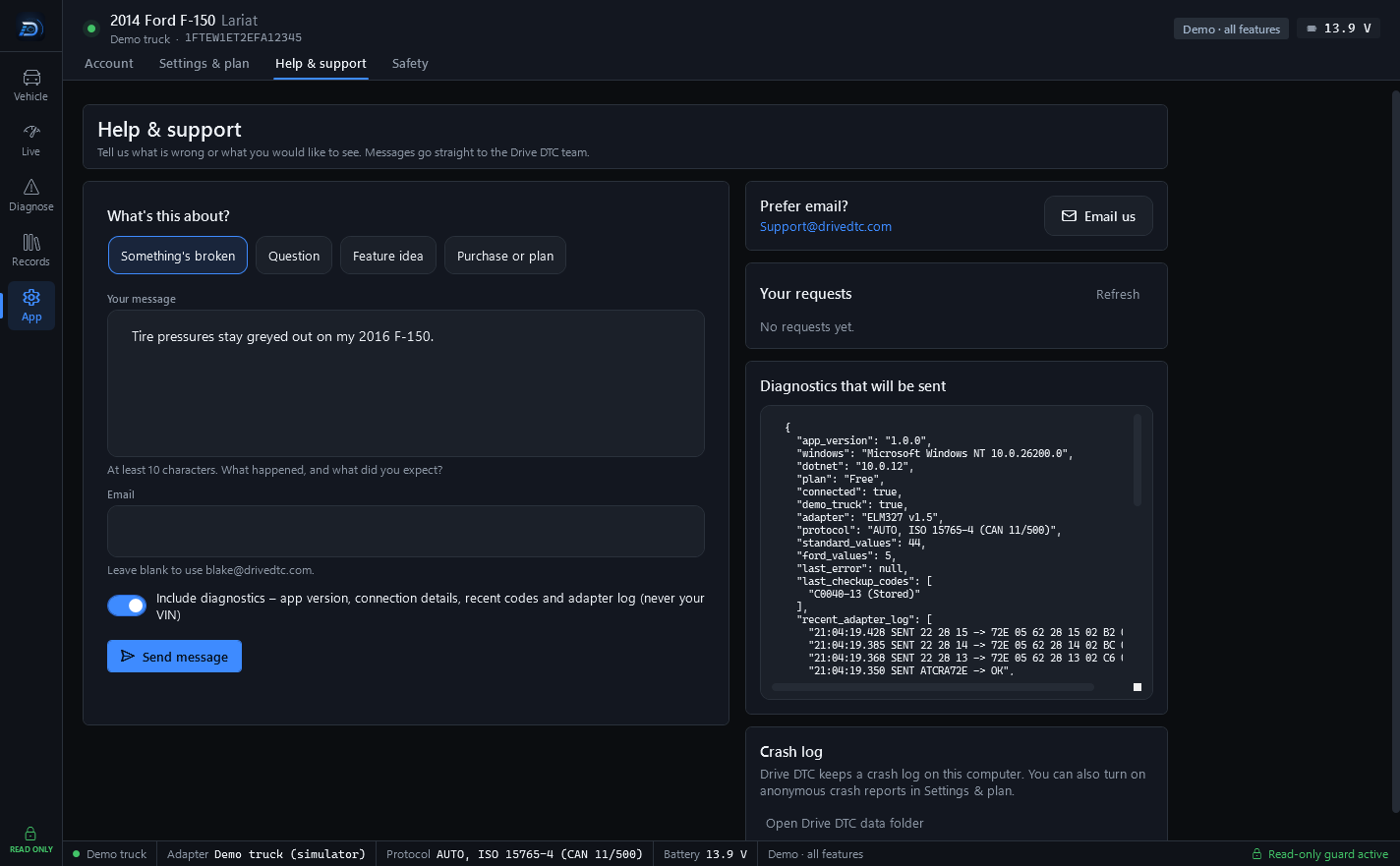
There are three ways to reach a person: a ticket in the app, a ticket on this website, or plain email. A ticket keeps the whole conversation in one place, so nobody has to ask you to repeat yourself.
From the app
Tickets are kept with your account, so sign in first (App → Account). Without an account, press Email us instead on the Help & support page.
- Go to App → Help & support and press New ticket.
- Subject — one line saying what this is about.
- What's this about? — pick the closest topic: something not working, a reading or code you don't understand, account or sign-in, purchase or plan, running Drive DTC in a shop, a feature idea, or something else.
- Priority — low, normal, high, or urgent if a vehicle is in the bay.
- What's going on? — what happened, and what you expected. The vehicle, the adapter and what the app said all help.
- Leave Include diagnostics on for anything technical. It sends the app version, connection details, recent codes and the adapter log — never your VIN. Press See what's included to read exactly what will be sent before you send it.
- Attach a screenshot or a log if it helps, then press Create ticket.
Where replies show up
Replies arrive in the ticket itself — open Help & support and pick the ticket — and by email at your account address. A ticket waiting on you is marked Awaiting your reply. Replying to a ticket that has been resolved or closed opens it again.
On the website
My tickets shows the same tickets in a browser and lets you open a new one with an attachment: a screenshot, a PDF or a log file up to 10 MB. Sign in with the same email and password you use in the app.
By email
Prefer email? Write to [email protected] from any address — no account needed. The Email us button on the Help & support page opens a message for you. There is also a contact form on the website that needs no account.
Crash log
Drive DTC keeps a crash log on this computer. Press Open Drive DTC data folder on the Help & support page to find it. If the app has just shown "Something went wrong", the log from that moment is the most useful thing to attach.
Note: A ticket is stored with your account email (or the address you type on the website contact form), the app version and, if Include diagnostics is on, the technical details above. Your VIN is not included. Files you attach are kept where only you and Drive DTC support can open them. See What stays on your computer and what goes to the cloud.
Last updated
Was this helpful?